Protected setup
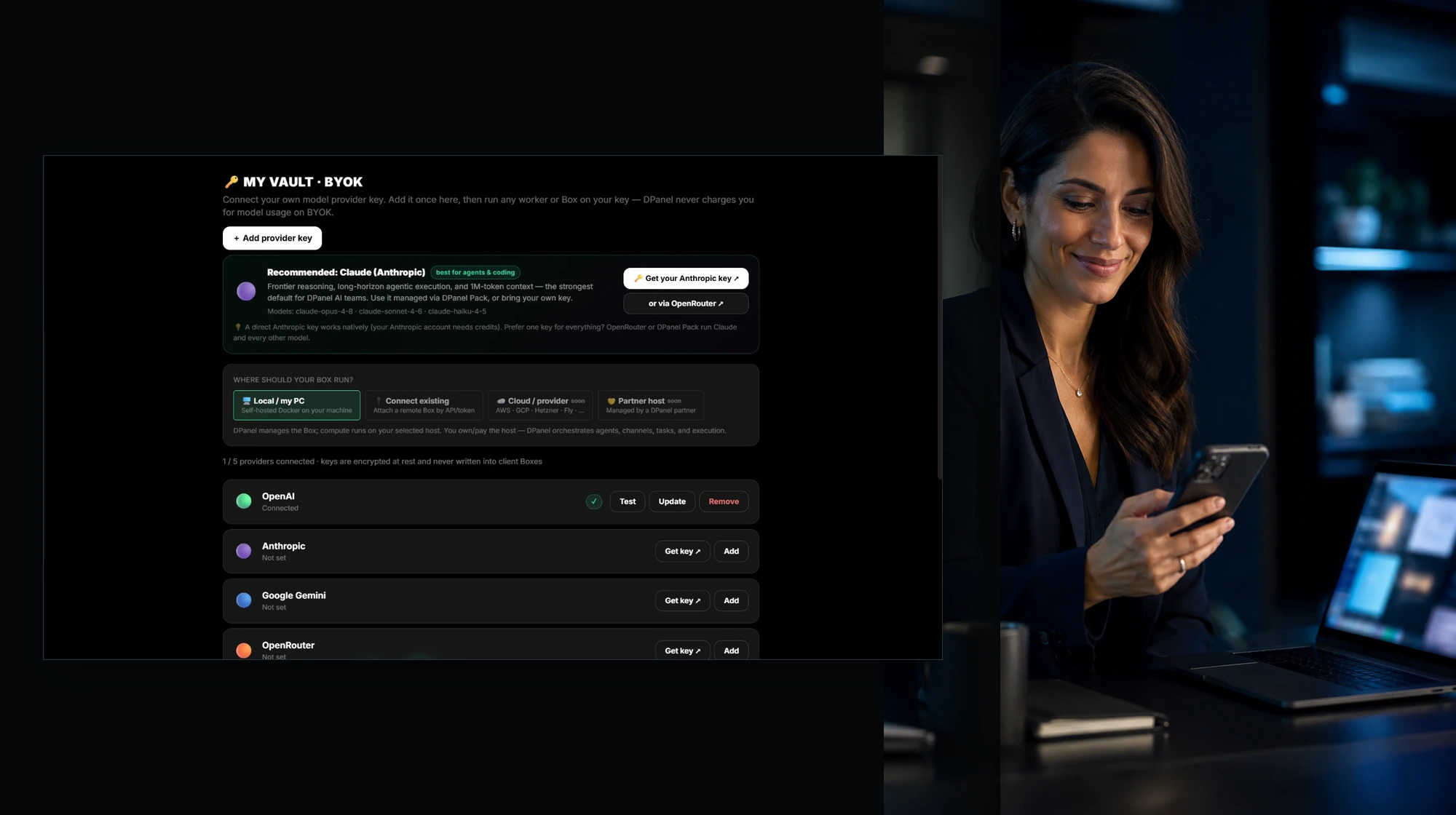
Keep keys in Vault
Add and test supported provider keys without displaying the stored secret again.
Bring your own key
For teams that already have model-provider accounts or want the provider to bill model usage directly.
Managed model access paid from your dPanel.ai credit balance, with consumption visible by model, task, team member, Box, and surface.
Connect your own provider keys through the protected Vault. Your provider bills the model usage directly.
In the product
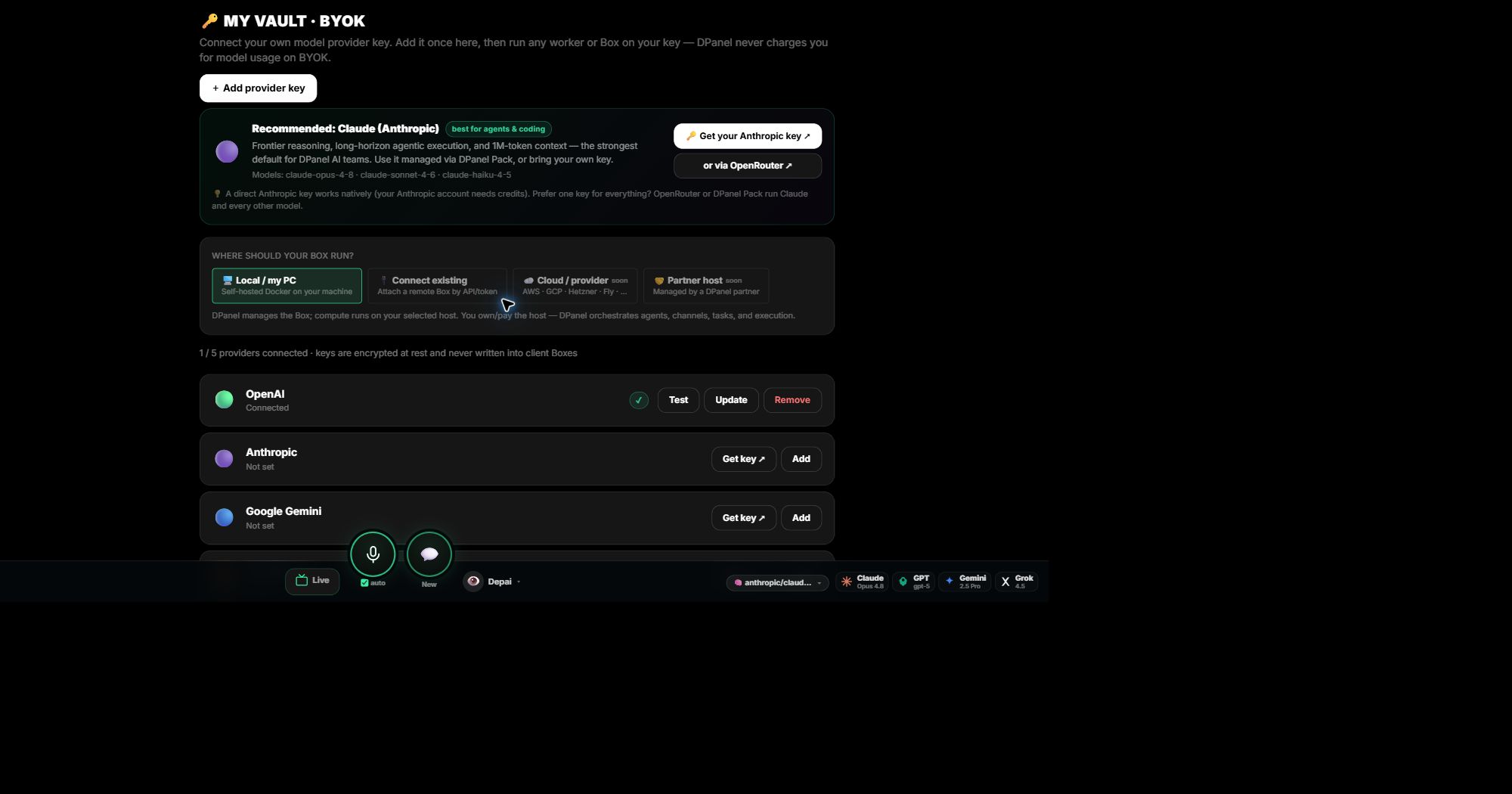
Protected setup
Add and test supported provider keys without displaying the stored secret again.
Explicit assignment
A provider key is applied only after you select the Box and confirm consent.
Direct billing
dPanel.ai does not deduct Pack credits for BYOK model usage.
Knowledgebase
Use dPanel.ai credits and start right away, or bring your own provider key and pay your provider directly.
Use Your Provider Key on a dPanel.ai BoxAdd a model-provider key to your Vault once, test it, and apply it to the Box that should use it.
Where Can a dPanel.ai Box Run?Run a Box on your own computer, on a Box hosted by dPanel.ai, or on a machine you already have.
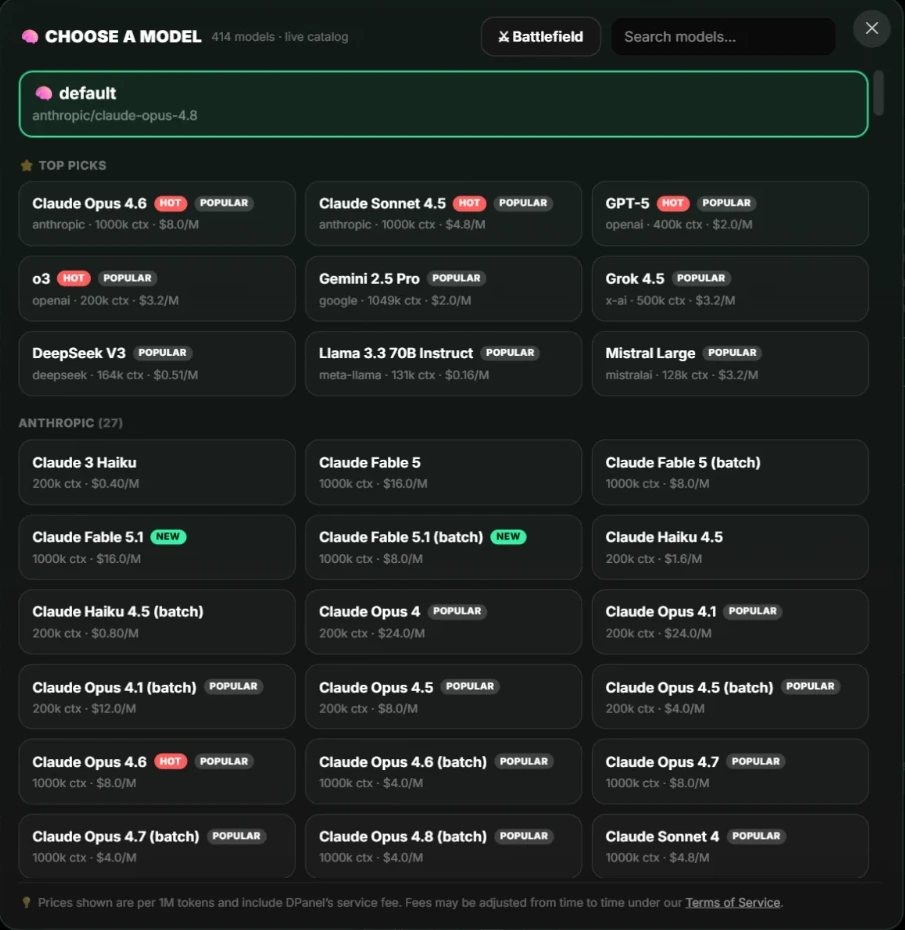
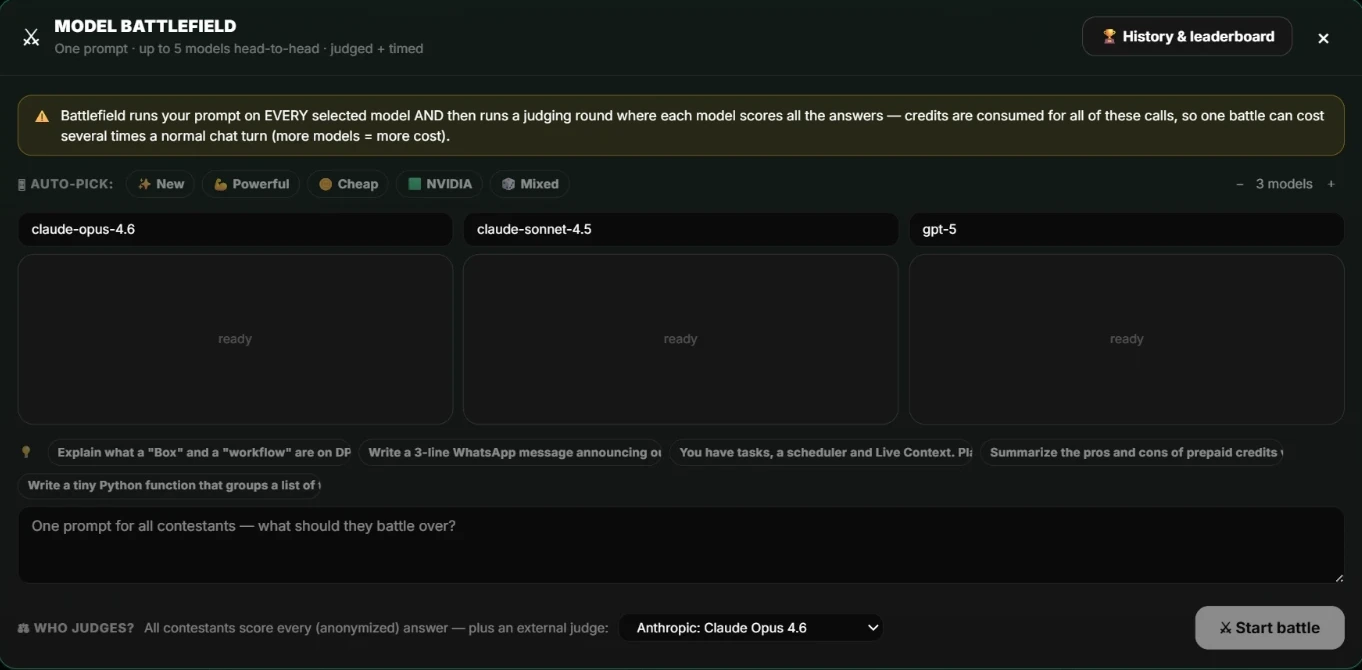
Control Model and Provider AccessChoose which models and providers your team may use, switch models for a better price, and compare them head to head.
Best for
What you can do
Included roles
Related workflows
Works with
Approval point
Handoff output
Connected provider, selected Box, model path, consent state, and the next setup step.
FAQ
Store your provider keys in the dPanel.ai Vault and explicitly apply them to the Box and AI team that should use them.
For teams that already have model-provider accounts or want the provider to bill model usage directly.
It helps with add and test a provider key in the protected vault., apply it to a selected box with explicit consent., choose a compatible model for the box or ai-team member., while dPanel.ai keeps tasks, approvals, and handoff visible.
Approval moments include before applying a key to a box, before changing the active provider path.
Connected provider, selected Box, model path, consent state, and the next setup step.