Boxes y alojamiento
Elige dónde se ejecuta tu equipo de IA
Usa dPanel.ai como plano de control mientras el Box se ejecuta en el entorno adecuado para tus necesidades de propiedad, acceso y alojamiento.
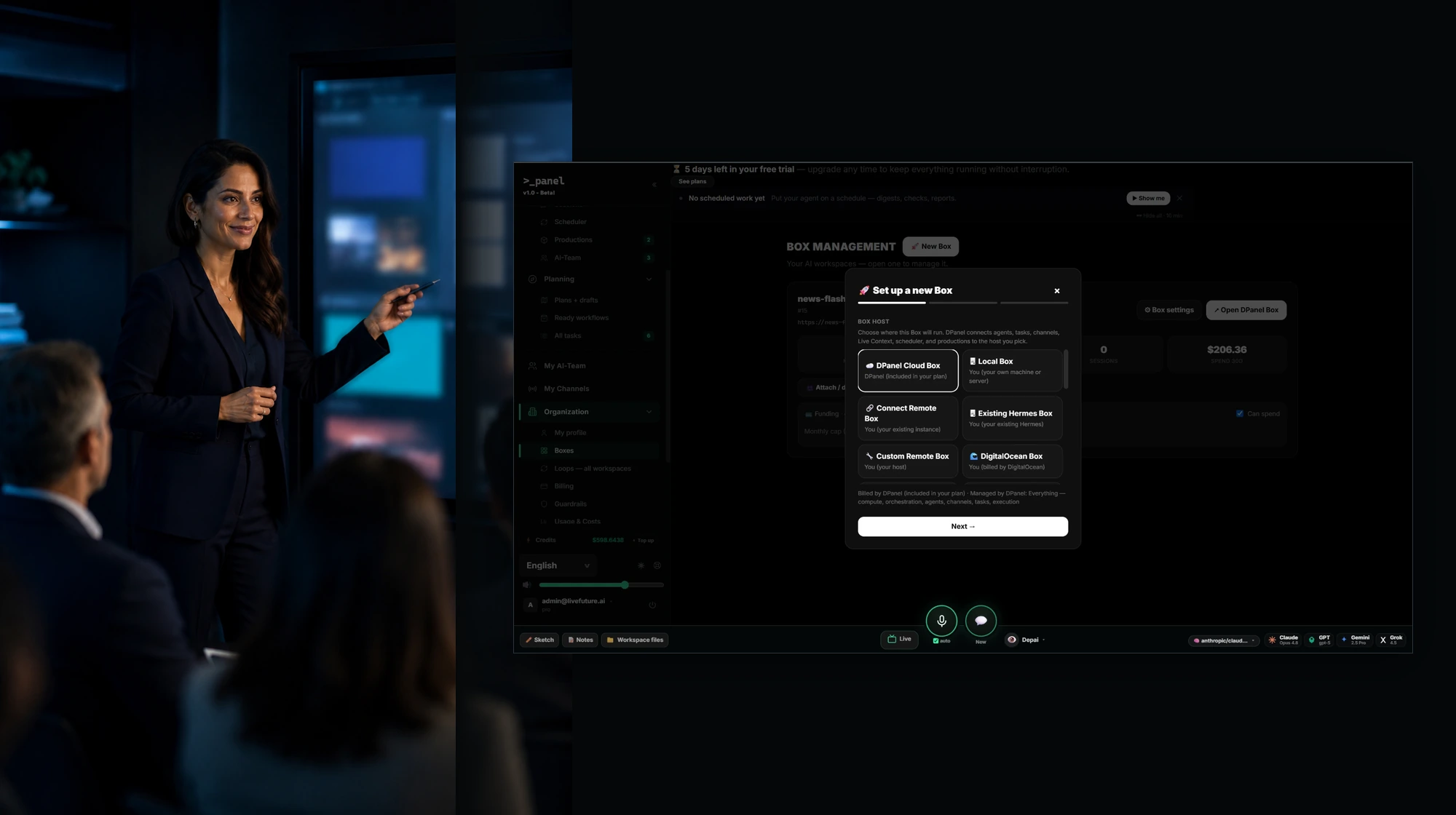
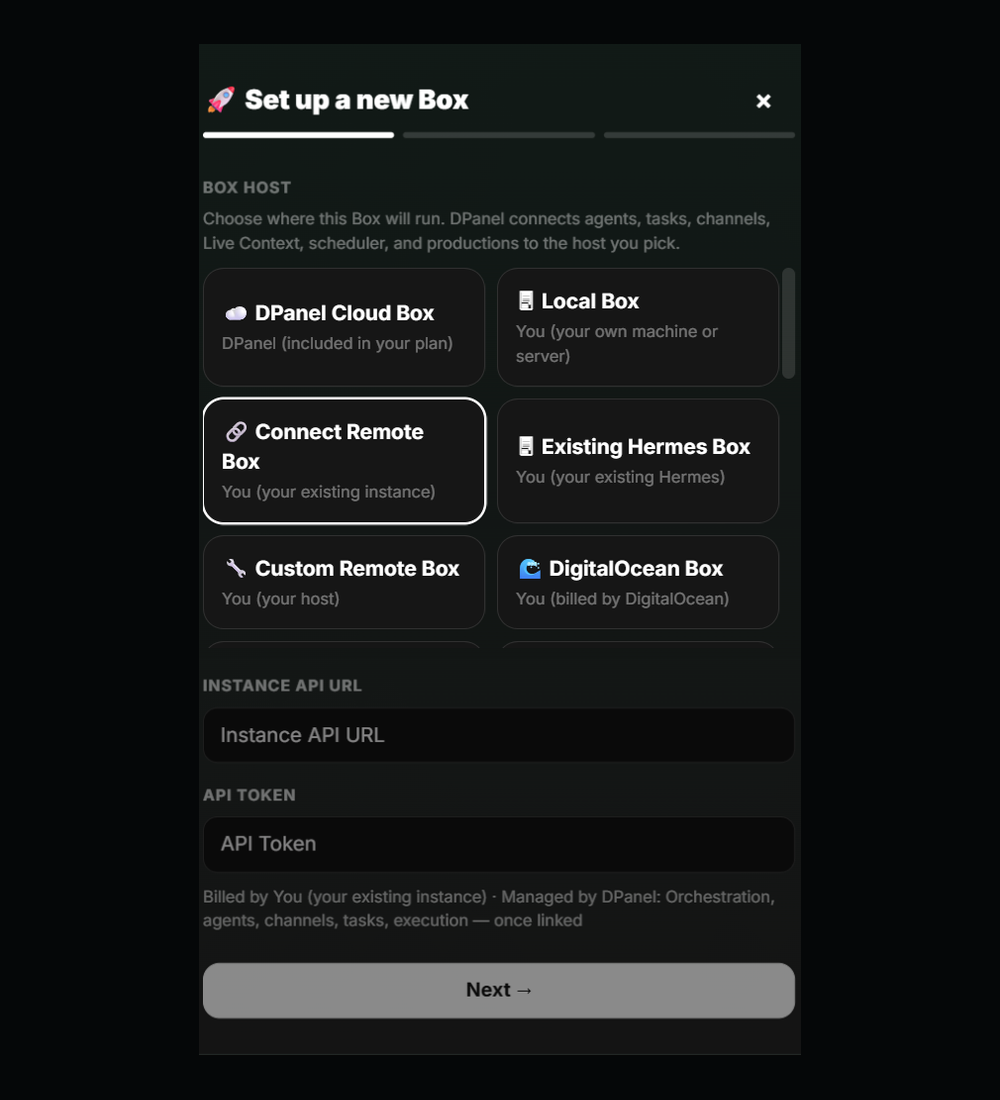
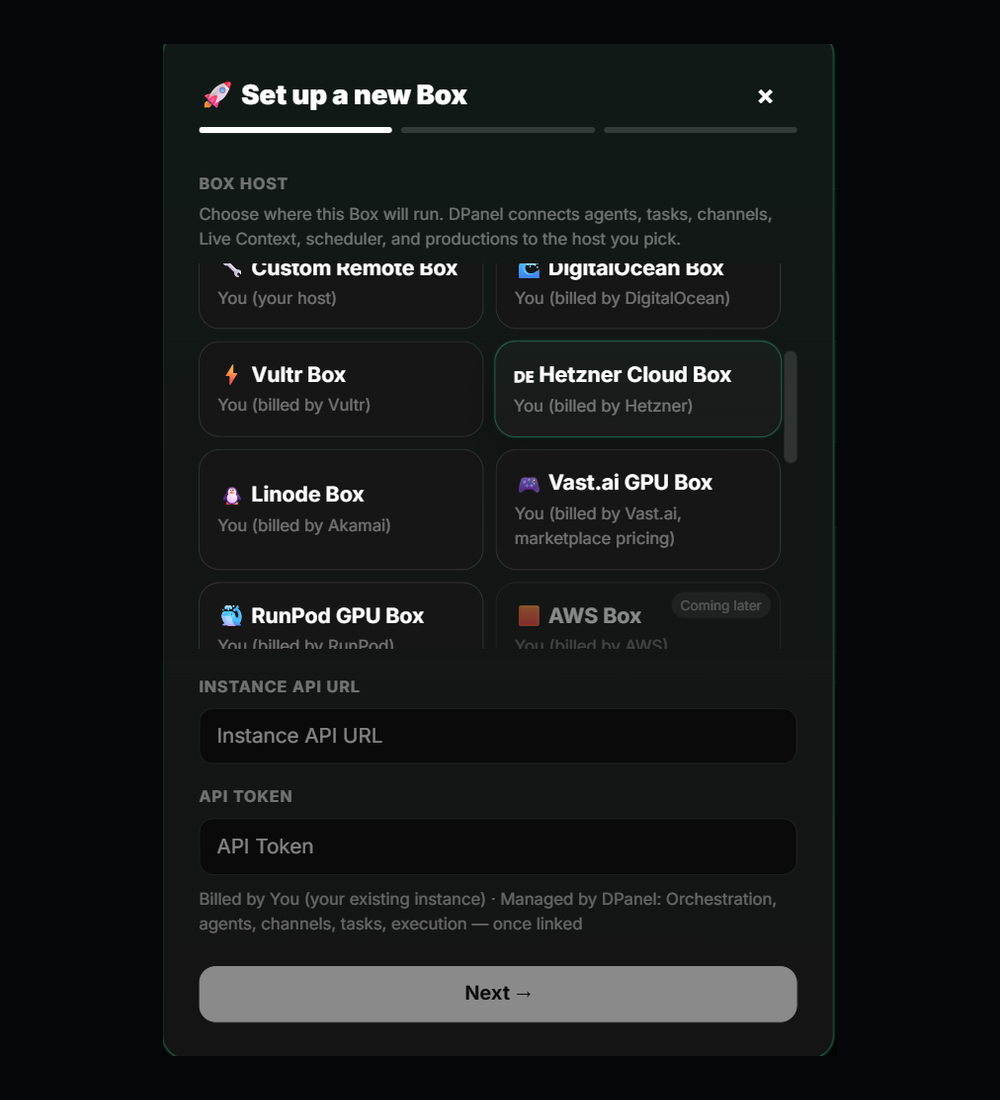
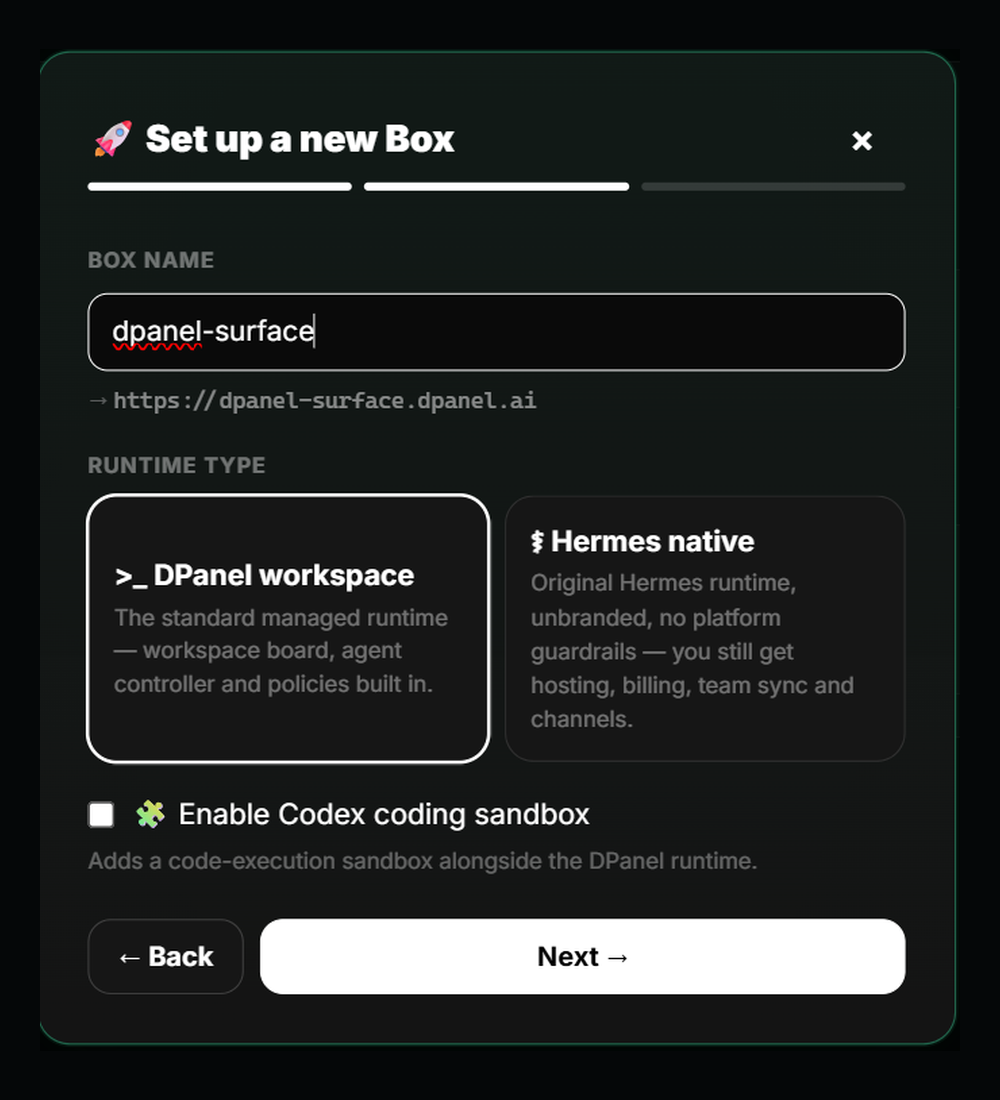
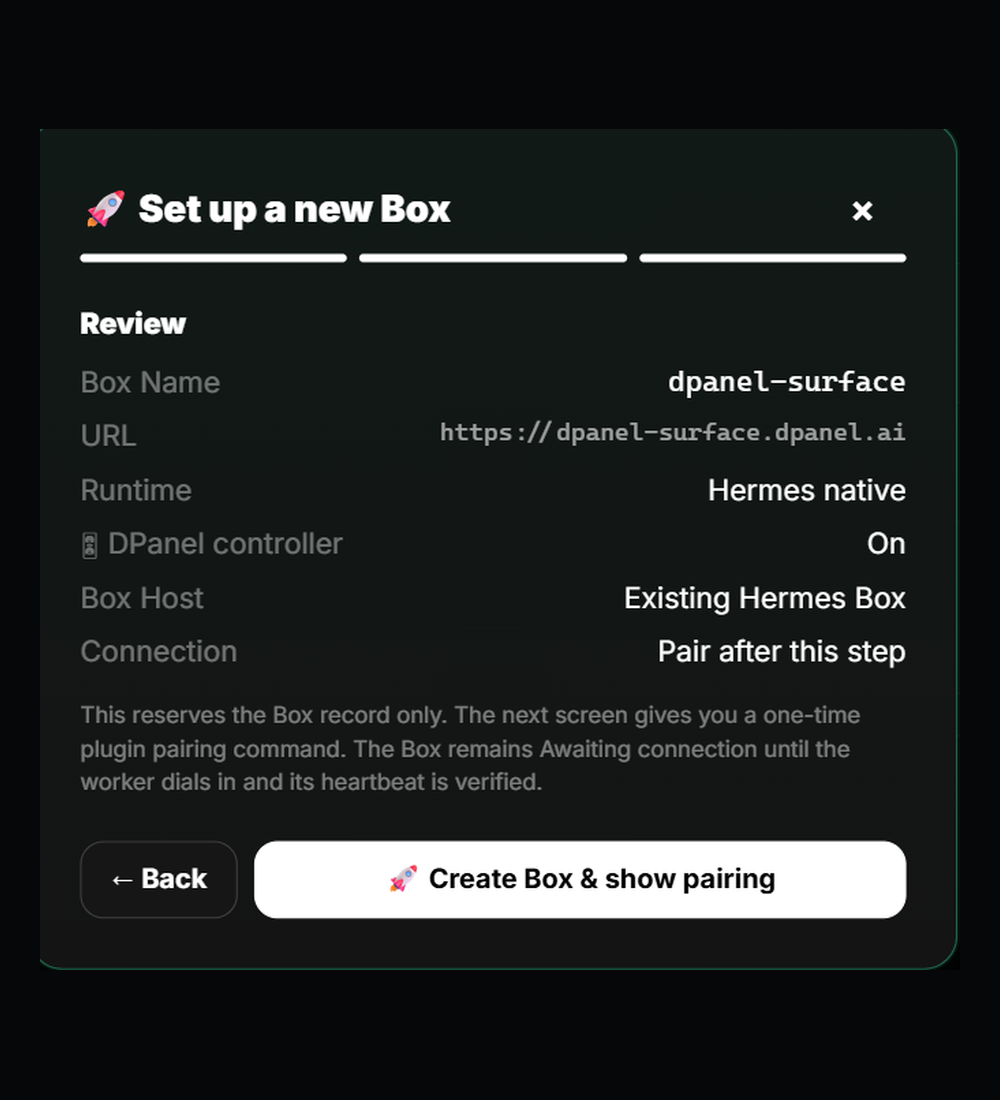
Configura un Box
- Elige el alojamiento. Elige dónde se ejecutará el Box. dPanel.ai conecta agentes, tareas, canales, contexto en vivo, programador y producciones con el alojamiento que elijas.
- Dale un nombre y elige el entorno de ejecución. El nombre se convierte en la dirección del Box en dPanel.ai. Elige el espacio estándar de dPanel.ai con tablero, controlador y políticas integrados, o el entorno nativo original de Hermes, y añade el entorno aislado de Codex cuando el trabajo necesite ejecutar código.
- Conecta con tu clave. Una instancia existente se conecta con su URL de API y token de API. Mantienes tu facturación y, tras conectarla, dPanel.ai gestiona la orquestación, los agentes, los canales, las tareas y la ejecución.
- Revisa y vincula. La revisión muestra nombre, dirección, entorno, controlador y alojamiento del Box. Un comando único vincula al trabajador y el Box se activa al verificarse su señal de actividad.
Proveedores de alojamiento de Box
dPanel.ai Cloud, tu equipo o tu cuenta de proveedor.
En dPanel.ai Cloud, el cómputo viene con tu plan y dPanel.ai lo gestiona todo. En tu equipo, instancia o cuenta de proveedor, el proveedor te factura y dPanel.ai gestiona orquestación, agentes, canales, tareas y ejecución.
dPanel.ai, incluido en tu plan
Tú, con tu ordenador o servidor
Tú, con tu instancia existente
Tú, con tu Hermes existente
Tú, con tu alojamiento
Tú, con facturación de DigitalOcean
Tú, con facturación de Vultr
Tú, con facturación de Hetzner
Tú, con facturación de Akamai
Tú, con facturación de Vast.ai y precios del mercado
Tú, con facturación de RunPod

Tú, con facturación de AWS
Un plano de control
Los controles son los mismos dondequiera que se ejecute el Box.
Gestiona su equipo, tareas, sesiones, programaciones, canales, memoria, consumo y ajustes desde dPanel.ai.
Ejecuta un Box Docker autoalojado en tu ordenador o servidor, bajo tu control.
Conecta un Box remoto existente mediante URL de API y token, y conserva tu alojamiento actual.
Crea el Box en tu cuenta de DigitalOcean, Vultr, Hetzner, Linode, Vast.ai o RunPod, con facturación directa del proveedor.
Conectar un entorno remoto, aplicar una clave de proveedor y aumentar el límite de gasto de un Box requieren tu aprobación.
Preguntas frecuentes
¿Qué es Elige dónde se ejecuta tu equipo de IA?
Ejecuta un Box de dPanel.ai localmente, conecta un entorno remoto existente y prepara destinos compatibles de nube o alojamiento asociado.
¿Para quién es esta página de dPanel.ai?
Usa dPanel.ai como plano de control mientras el Box se ejecuta en el entorno adecuado para tus necesidades de propiedad, acceso y alojamiento.
¿Qué hace realmente el equipo de IA?
Ayuda con Ejecuta localmente un Box Docker autoalojado., Conecta un Box remoto existente mediante API o token., Gestiona su equipo, tareas, sesiones, programaciones, canales, memoria, consumo y ajustes desde dPanel.ai., mientras dPanel.ai mantiene visibles las tareas, aprobaciones y entregas.
¿Dónde se realizan las aprobaciones?
Los momentos de aprobación incluyen Antes de conectar un entorno de ejecución remoto, Antes de aplicar una clave de proveedor, Antes de aumentar el límite de gasto de un Box.
¿Cómo es la entrega?
Ubicación del Box, estado de ejecución, equipo asociado, conexiones necesarias, estado del consumo y siguiente paso de configuración.